
On a Webflow site, each QR code is an item of a QR Codes CMS collection, and its address is a page of your site: yoursite.com/qr/menu. You manage codes from the Designer app or from the customer area.
Install and connect
- Install QR Manager from the Webflow Marketplace, or open the install link.
- On Webflow’s authorization screen, choose your site and click Authorize.
- In the Designer, open the Apps panel and launch QR Manager.
Only the person who installs the app authorizes it. Teammates on the same site simply open the app.
The setup assistant
The first time, an assistant guides you through five steps. Each step unlocks when the previous one is done, and the app checks them by itself.
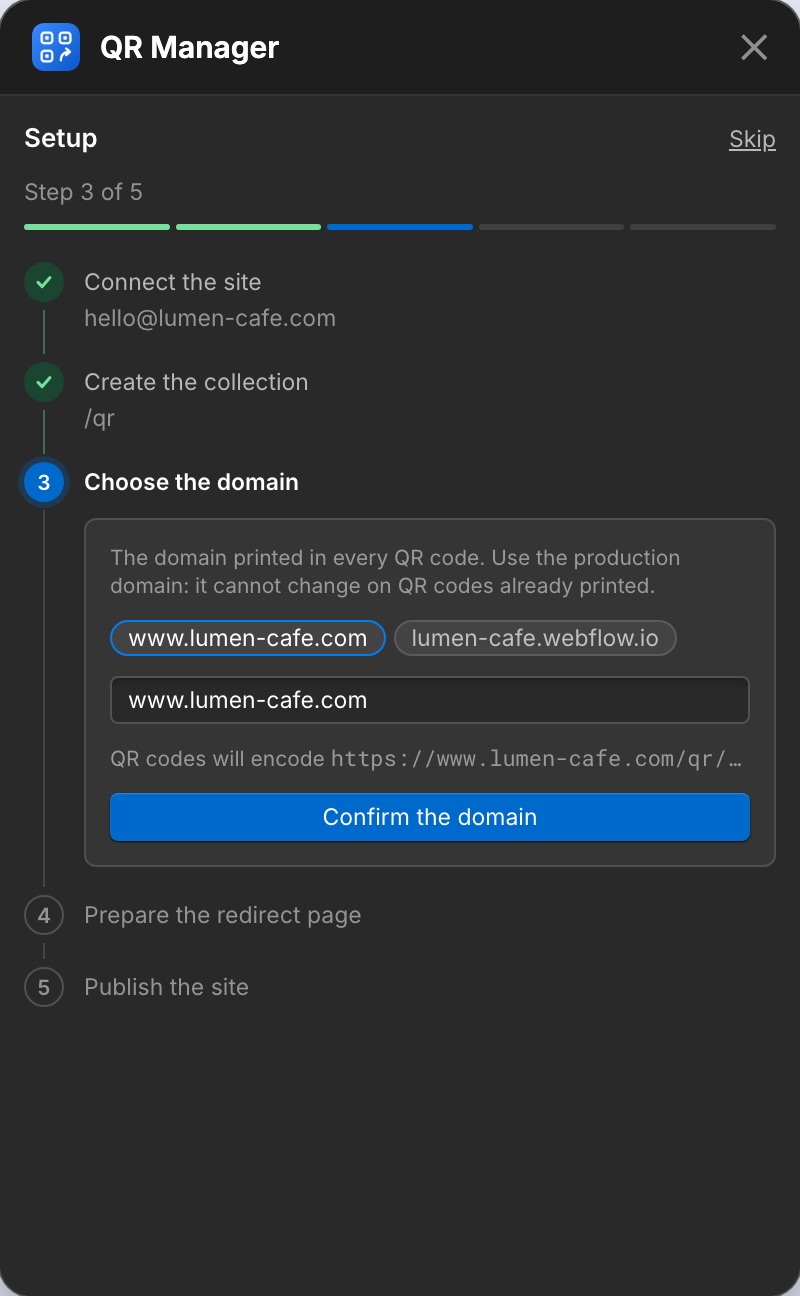
- Connect the site: authorize the app in the tab that opens.
- Create the collection: one click creates the “QR Codes” collection, or completes an existing one.
- Choose the domain printed in your codes. Use your production domain: it cannot change once printed.
- Prepare the redirect page: the app builds the collection’s template page. If an older version of the page is there, Update the page and continue updates it in one click.
- Publish the site with the Designer’s Publish button. The app detects it.
Reopen the assistant anytime from Settings → Setup assistant.
Create and manage codes in the Designer
- In the QR codes tab, click the round + button.
- Enter a Name, check the Slug (the address
/qr/slug), and the Destination URL. - Optionally add a Category, a style and UTM parameters.
- Click Create QR code: the item is saved in your CMS and published.
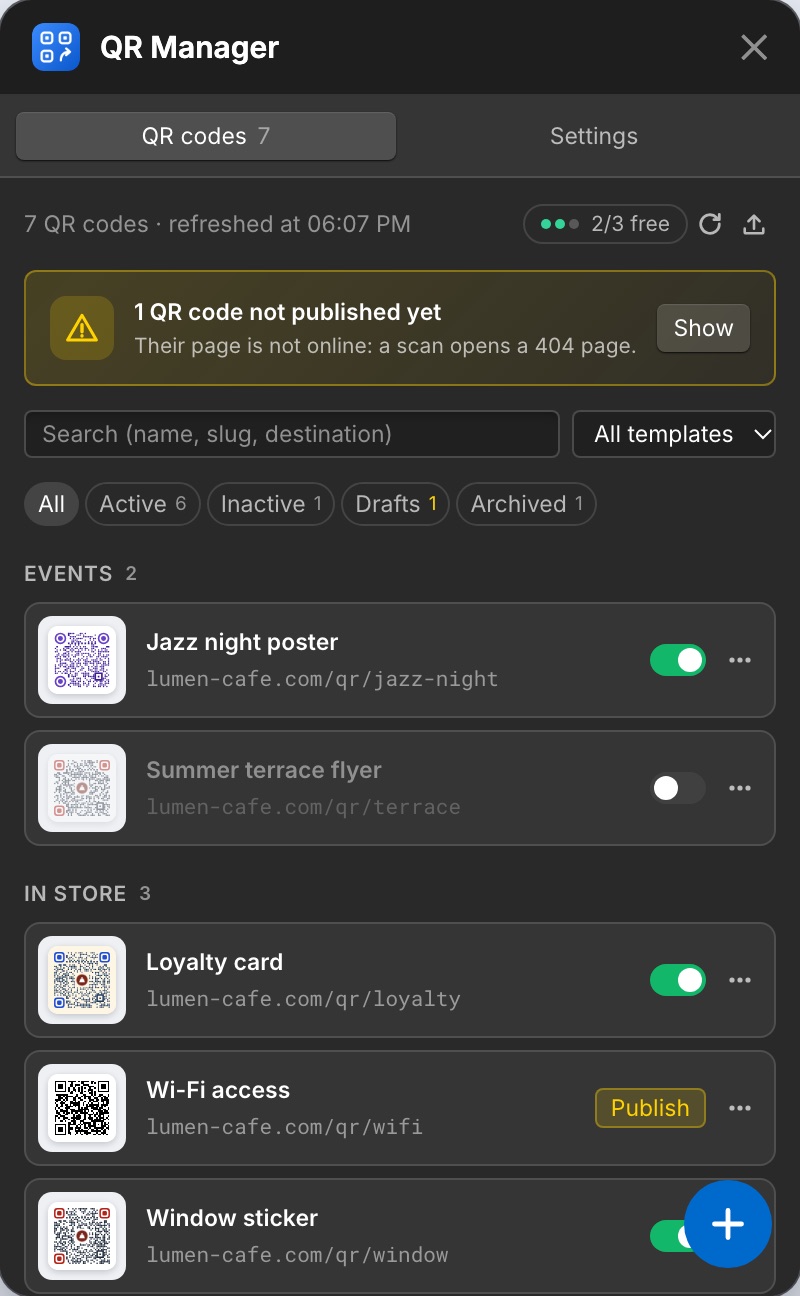
The list offers search and filters, an on/off switch per code, and a ⋯ menu (Edit, Duplicate, Test the link, Copy URL, Download PNG / SVG, Archive, Delete). Click a code to see its page: address, downloads, destinations, style, and who generated its image.
- Not published yet: a yellow stripe and a Publish button flag codes saved but not published.
- Outdated image: the image no longer matches the domain or the template; Regenerate fixes it. Printed codes keep working either way.
Everything else
- Multilingual sites
- CSV import and export
- Site changes and permissions, including disconnecting and uninstalling
Frequently asked questions
Which Webflow plan do I need?
A site that can use the CMS, since each QR code is one CMS item, and the right to edit it in the Designer.
Do my printed QR codes depend on QR Manager?
No. On a Webflow site, your own site performs the redirect, from its CMS. QR Manager is only used while you create and edit codes.
Can I use QR Manager on several Webflow sites?
Yes. Each site has its own collection, templates and authorization, and all of them appear in your customer area.