
The upload icon at the top of the QR codes list, in the Webflow app, opens Export as CSV and Import a CSV.
Export
Downloads every code, archived ones included, in a file that opens in Excel, Numbers or Google Sheets.
Import
- Start from an export, or from a file with at least the
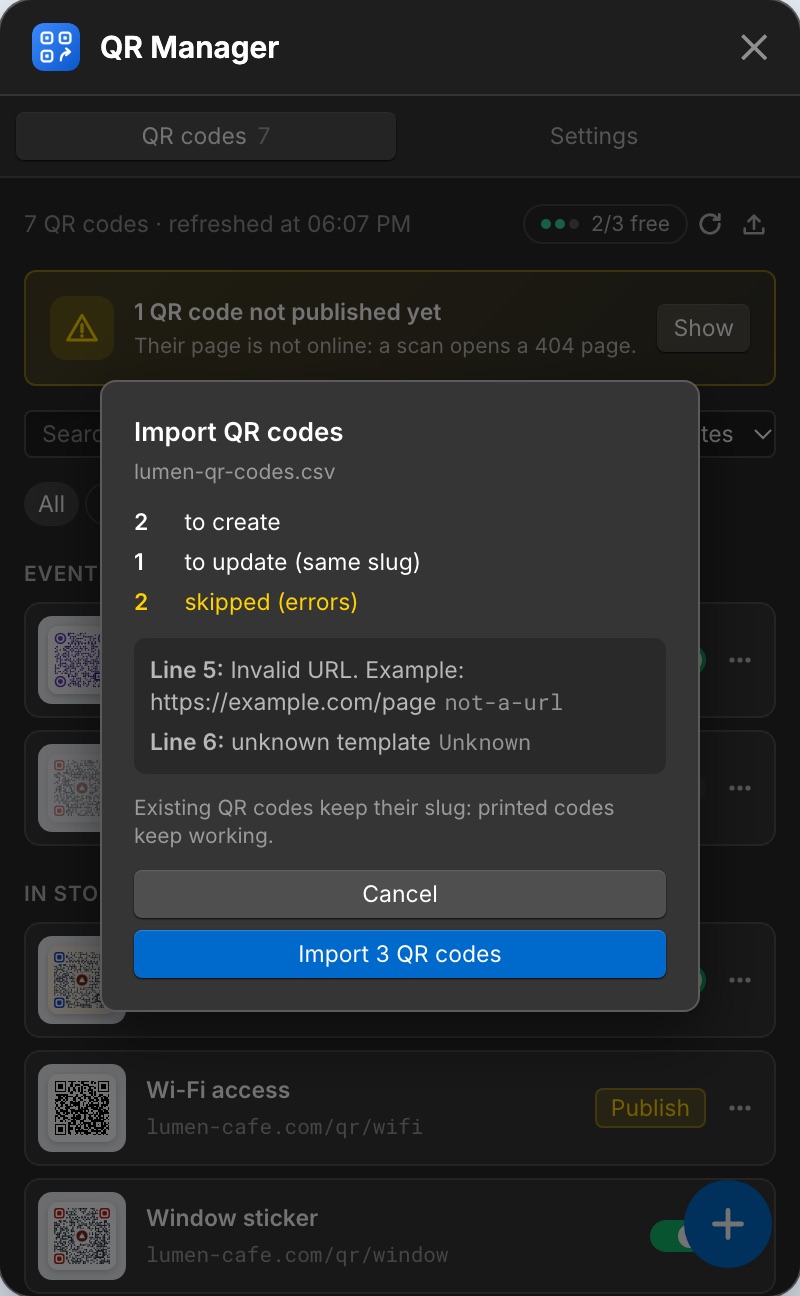
nameanddestination_urlcolumns. - Pick the file. The app shows how many codes will be created, updated or skipped, with the reason for each error.
- Click Import. Codes are saved and published one by one, with a progress bar.
Columns
| Column | Content |
|---|---|
name |
Required. |
destination_url |
Required. A full URL starting with https://. |
slug |
Optional (built from the name). A slug that already exists updates that code. |
active |
Optional: true / false (also yes / no, 1 / 0). Empty keeps the current state. |
template |
Optional: the name of a template of the site. Empty keeps the current style. |
destination_fr, destination_de… |
Multilingual sites: a specific URL for that language. Empty follows the main destination. |
Other columns of the export (archived, draft, qr_url) are ignored on import. Commas and semicolons both work as separators. Archived codes are not changed by an import: restore them first. Imported codes count as new codes on the free plan.