The QR Manager app for Canva lists the QR codes of your account in the side panel, ready to drag into any design.
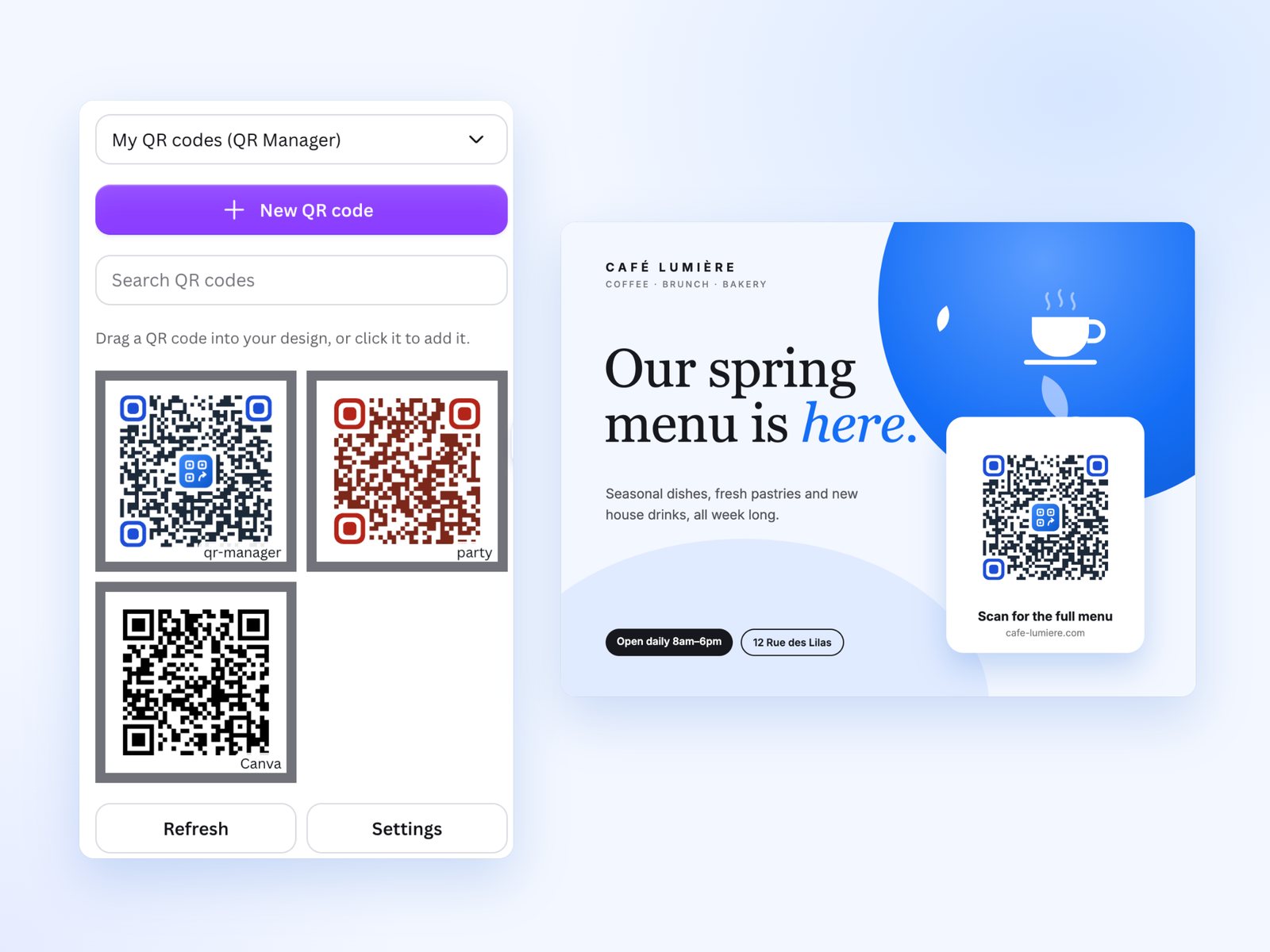
Connect your account
- In a Canva design, open Apps and search for QR Manager.
- Click Connect QR Manager, sign in to QR Manager in the window that opens (a free account works) and allow access.
- Pick the space at the top: your QR codes appear.
Add a QR code
Drag a code into your design, or click it to add it. It is added as an image you can move and resize like any element.
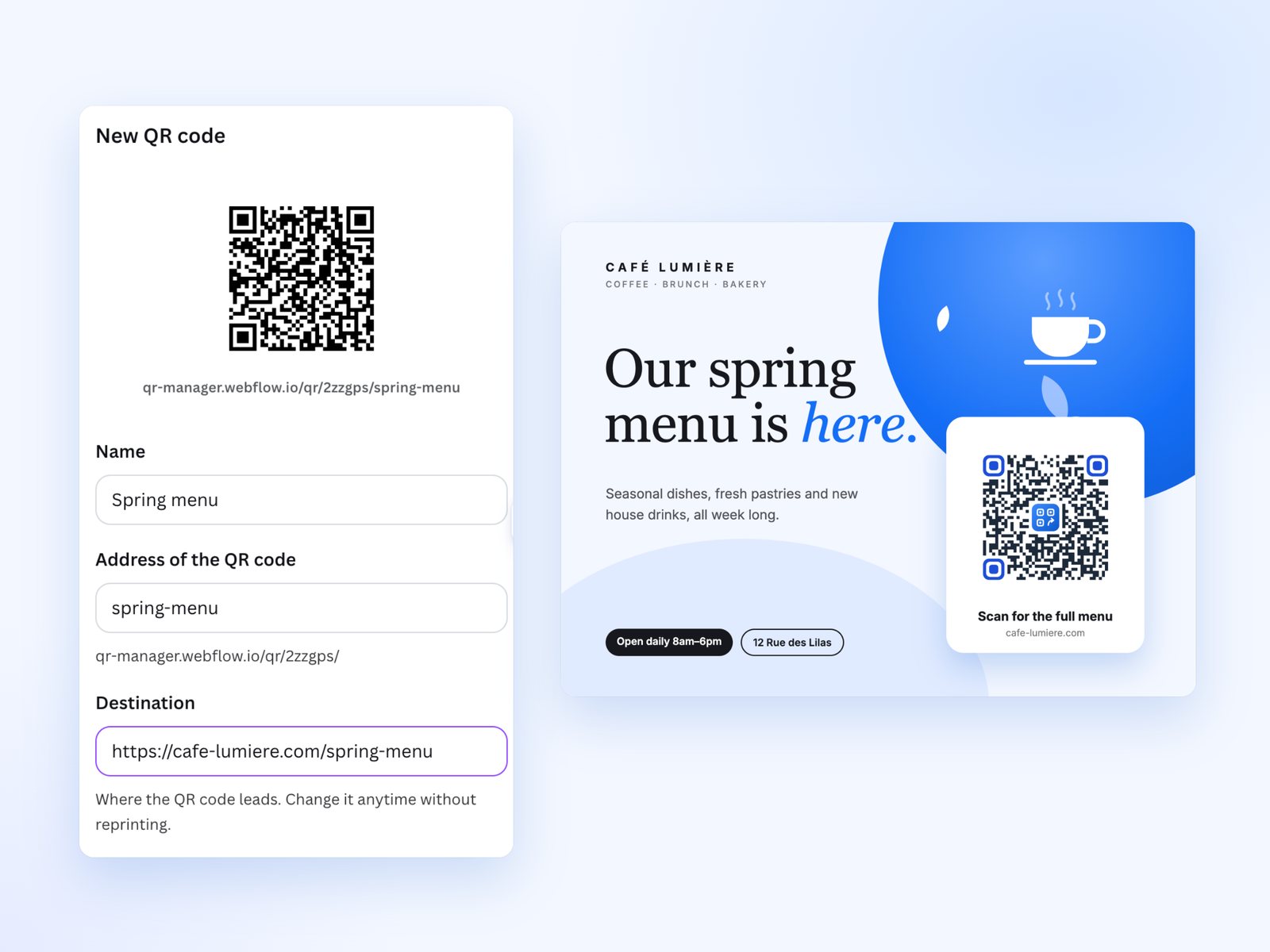
Create a QR code
New QR code opens the form: name, destination, address, style (team template or custom), category and UTM tracking. Create QR code creates it in QR Manager and adds it to your design.
Keep designs up to date
When the style of a code in your design changes in QR Manager, the app offers Update them in the design: the new image replaces the old one in place, same position and size. Refresh checks again at any time.
Settings
Settings holds the space options, default UTM tracking and Sign out. To remove Canva’s access from the web, use Integrations in the customer area.