QR Manager creates dynamic QR codes: the code always encodes the same short address, and you choose, at any time, where that address leads. This page gets you from zero to a printed, working code.
1. Create your free account
- Open qr-manager.fr/en/signup, enter your name and email address, and accept the terms.
- Click the link in the email you receive. Your customer area opens.
You can also sign in with Webflow if you use it: your Webflow sites then join your account.
2. Create a QR code
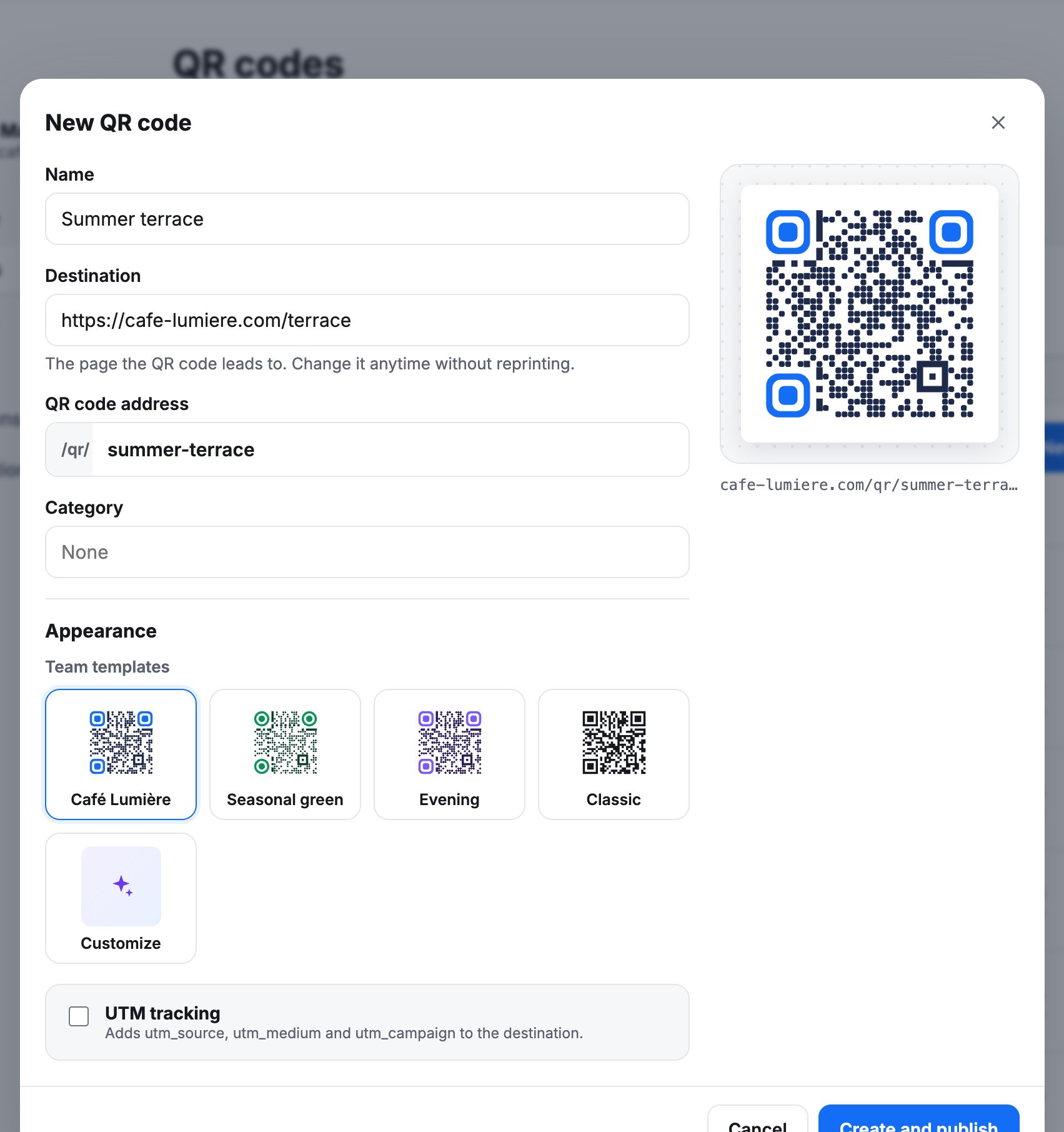
- Go to QR codes and click New QR code.
- Give it a Name (for you) and a Destination: the page people should land on today.
- Pick a style from the templates, or Customize colors, shapes and logo.
- Click Create and publish.
3. Download, test and print
Once created, copy the code’s link to test it, then download it:
- PNG (2048 px) for documents, slides and most printing.
- SVG (vector) for designers and large formats.
Scan the printed code with your phone before a large print run.
4. Change the destination anytime
Open the code, edit its Destination, and click Save and publish. The code you printed now leads to the new page. The QR code address stays fixed: never change it on a printed code, or the printed image would point to an address that no longer exists.
Next steps
Frequently asked questions
Is QR Manager free?
Yes. The free plan has no time limit and includes every feature, with up to 3 new QR codes over a rolling 24 hours. Editing, pausing and downloading your codes is never limited. Premium removes the limit and adds advanced statistics.
Do I need a website to create a dynamic QR code?
No. Every account has a space hosted by QR Manager, whose QR codes work right away at qr-manager.fr/qr/… You can connect a Webflow site later to use your own domain.
Can I change where a QR code leads after printing it?
Yes. That is what a dynamic QR code is for. Edit its destination in QR Manager and save: the printed code leads to the new page right away, with nothing to reprint.