
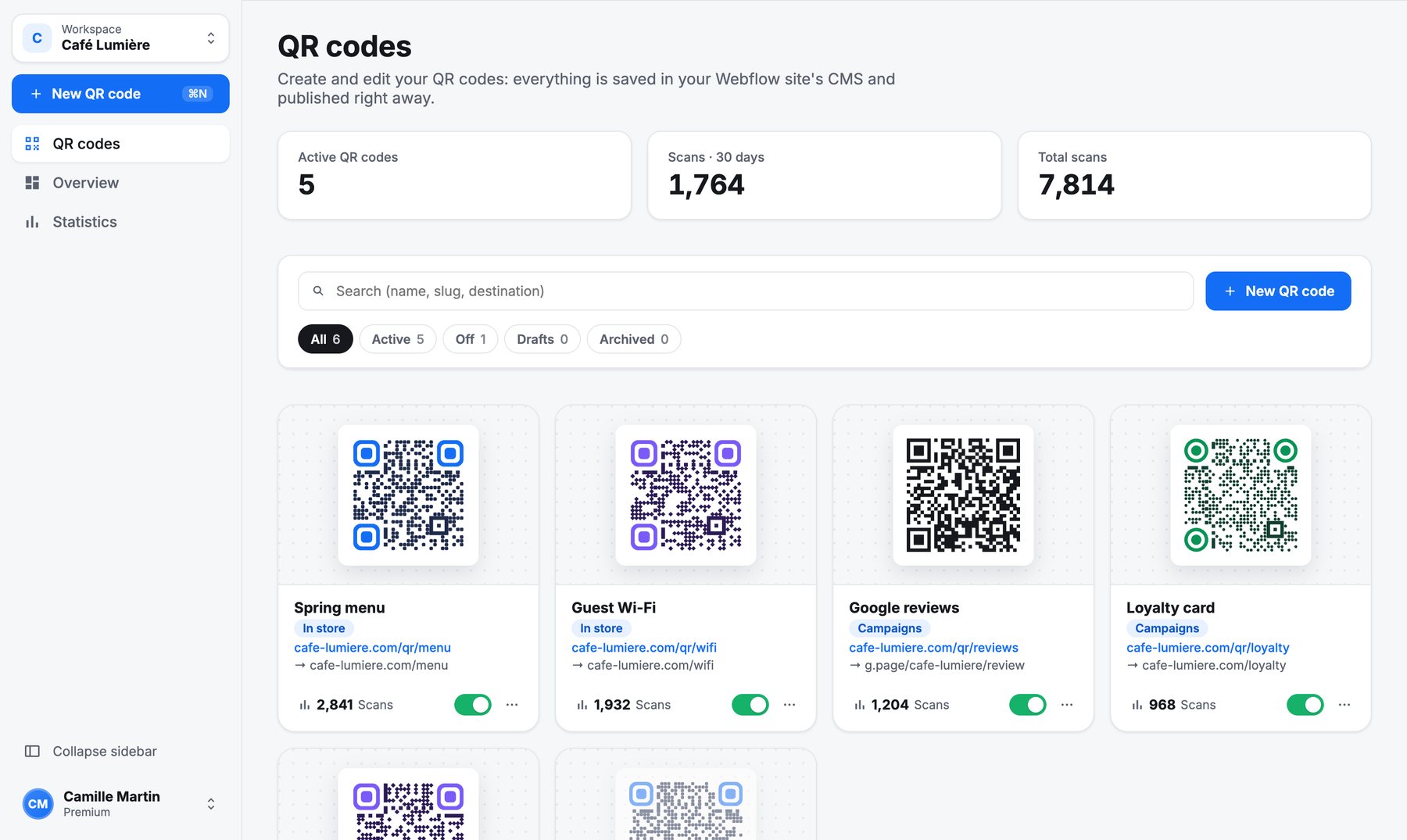
The desktop app gives you your whole QR code library in a native window: create, style, follow scans, and drag codes into your other apps.
Download and install
Download it from qr-manager.fr/en/download.
- Mac (macOS 11 or later, Apple silicon and Intel): open the
.dmgand drag QR Manager into Applications. The app is signed and notarized by Apple. - Windows (10 or 11, 64-bit): run the installer. If Windows shows “Windows protected your PC”, click More info, then Run anyway.
Sign in
Open the app and sign in: your browser opens the QR Manager sign-in page, then brings you back to the app. Your session is kept in your system’s secure storage.
Work faster
- New QR code (⌘ N or Ctrl N): the creation page opens next to the sidebar, with a live preview.
- Use the copied link: copy a URL anywhere, and the app offers it as the destination.
- Drag and drop: drag a QR code card out of the window into Figma, Canva, Adobe Express, a document or the Finder.
- Workspace (top left): switch between your hosted space, your Webflow sites and the sites shared with you.
- Collapse the sidebar with ⌘ \ (Ctrl \ on Windows).
- Appearance and language: light, dark or automatic, English or French, from the account menu at the bottom of the sidebar.
Updates
The app checks for updates at launch and every few hours. When a new version is out, a card offers Update (or Later): it downloads, installs and restarts by itself.
Frequently asked questions
Which systems does the desktop app support?
macOS 11 or later on Apple silicon and Intel Macs, and Windows 10 or 11 (64-bit).
How does the desktop app update?
It checks for a new version at launch and every few hours, and offers to install it in one click. Nothing to download by hand.