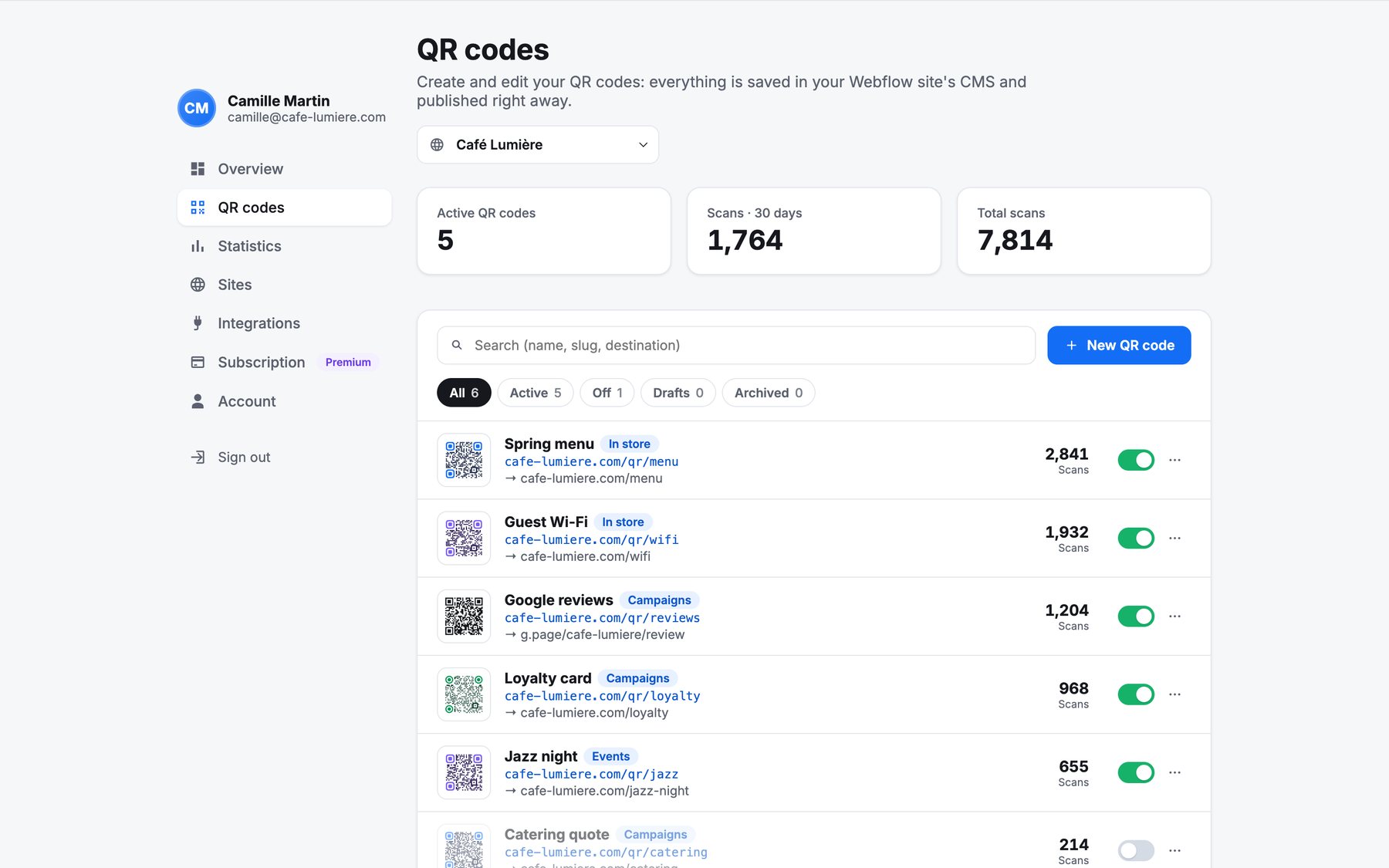
The QR codes section lists every code of the selected space, with its address, destination, scans and status.
Create a QR code
- Click New QR code.
- Name: for you only, for example “Spring menu”.
- Destination: the page the code leads to. You can change it anytime.
- QR code address: filled from the name (
/qr/spring-menu). It is printed in the code, so it stays fixed once the code is printed. - Category (optional): groups codes in the list (In store, Events, Packaging…).
- Appearance: a team template, or Customize for this code only. See Styles and templates.
- UTM tracking (optional): adds campaign parameters to the destination. See UTM tracking.
- Click Create and publish.
The code is saved and live right away: in the hosted space, or in your Webflow site’s CMS, published for you. Then copy its link or download it.
Find and filter
- Search by name, address or destination.
- Filters: All, Active, Off, Drafts, Archived.
- Codes are grouped by category when you use categories.
Day-to-day actions
| Action | Where | What it does |
|---|---|---|
| Turn off / on | The switch on the row | Off: the code shows an “inactive” message instead of redirecting. |
| Edit | Click the code | Change the name, destination, category, style or UTM, then Save and publish. |
| Download | ⋯ menu | PNG (2048 px) or SVG (vector). |
| Copy the link | ⋯ menu | The address printed in the code, to test or share. |
| Statistics | ⋯ menu | Opens the code’s scans. |
| Archive / Restore | ⋯ menu | Takes the code offline but keeps it; restore it with the same address. |
| Delete | ⋯ menu | Removes the code for good: printed copies lead to a missing page. |
Never change the address of a printed code. The address is inside the image: change it and the printed code points nowhere.
Drafts on Webflow sites
A code saved but not yet published on a Webflow site is a Draft: scanning it opens a missing page. Publish it from its row.
Usage limits
On the free plan, you can create 3 new codes over a rolling 24 hours (duplicates and imports count). Editing, turning off and downloading are never limited. See Plans and billing.