The Figma plugin puts the QR codes of your QR Manager account straight into your designs, as real components.
Connect your account
- In Figma, run QR Manager (Plugins, or the Figma Community page).
- Click Connect my account. A page opens in your browser with a pairing code.
- Sign in to QR Manager (a free account works), check that the code is the same, and click Allow Figma.
- Back in Figma, pick the space (a Webflow site or your hosted space): your QR codes appear.
The plugin’s access lasts 180 days and can be revoked anytime: Sign out in the plugin, or Integrations in the customer area.
Add QR codes to a design
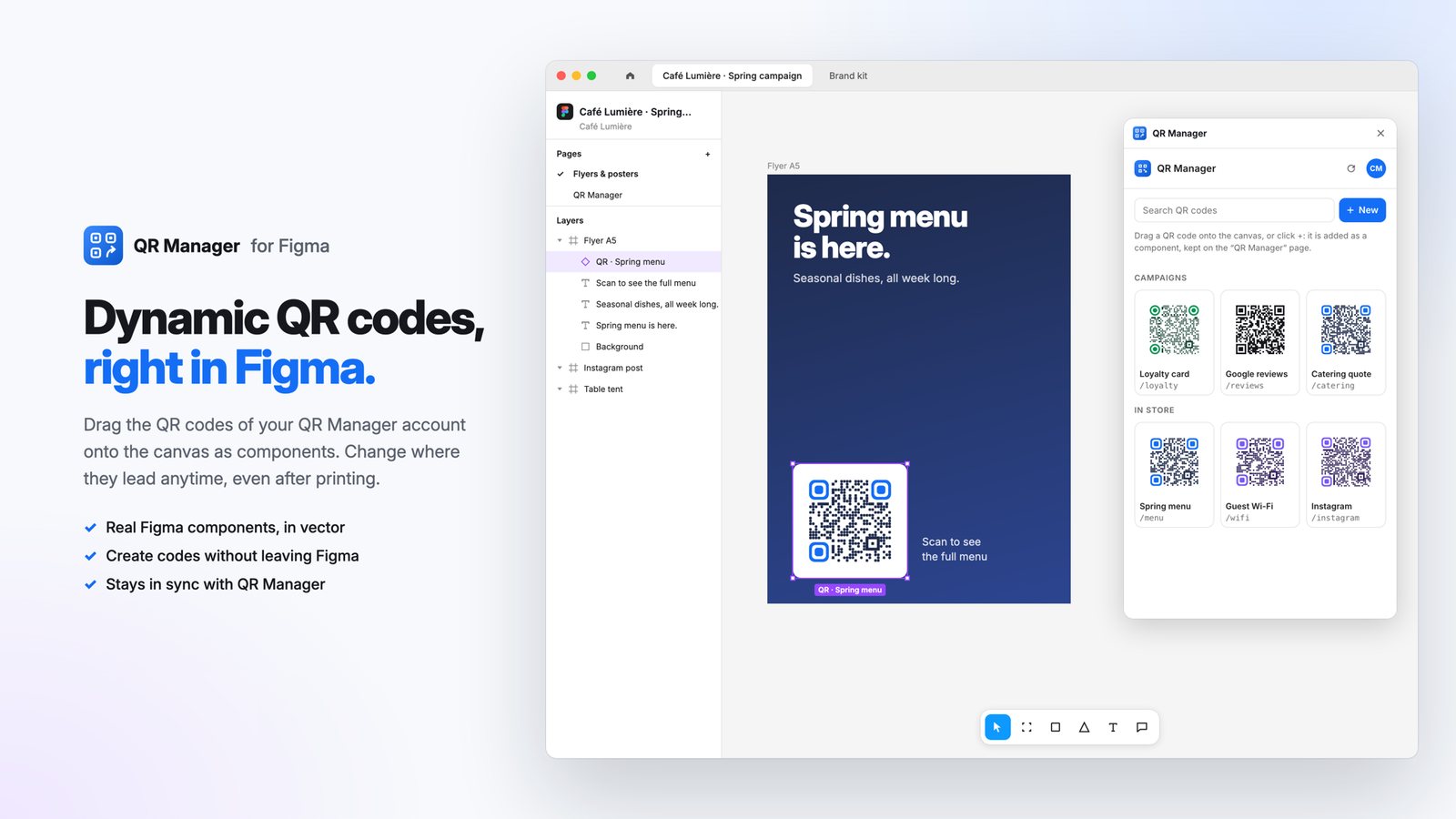
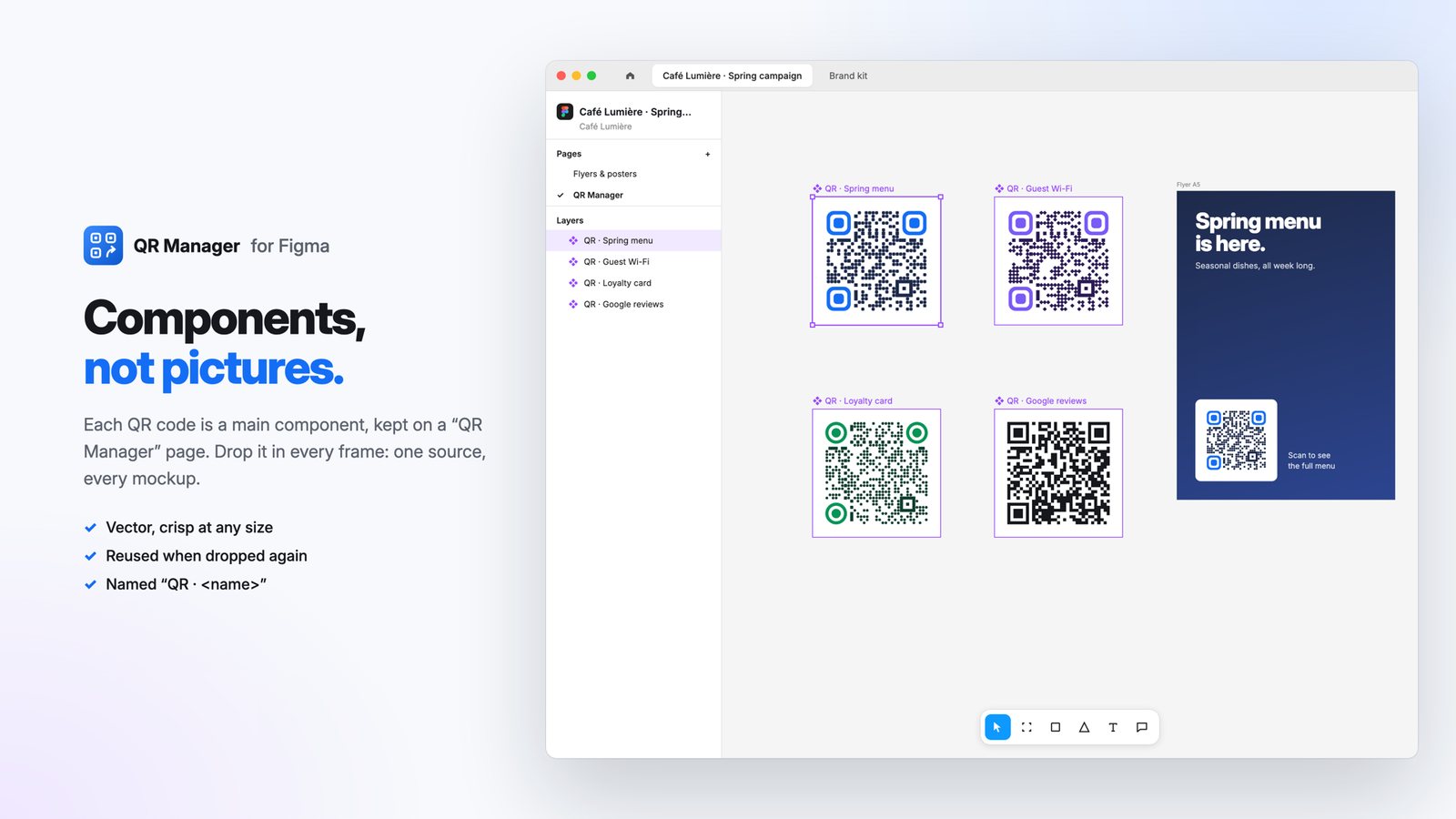
Drag a code onto the canvas, or click +. Each QR code becomes a main component (vector, QR · <name>) kept on a QR Manager page of the file; what you drop is an instance. Dropping the same code again reuses its component.
Create a code in Figma
New opens the same form as the customer area: name, destination, address, category, one destination per language, team template or custom style, UTM parameters. Create QR code creates it in QR Manager, then Insert on the canvas drops it into your design.
Keep designs up to date
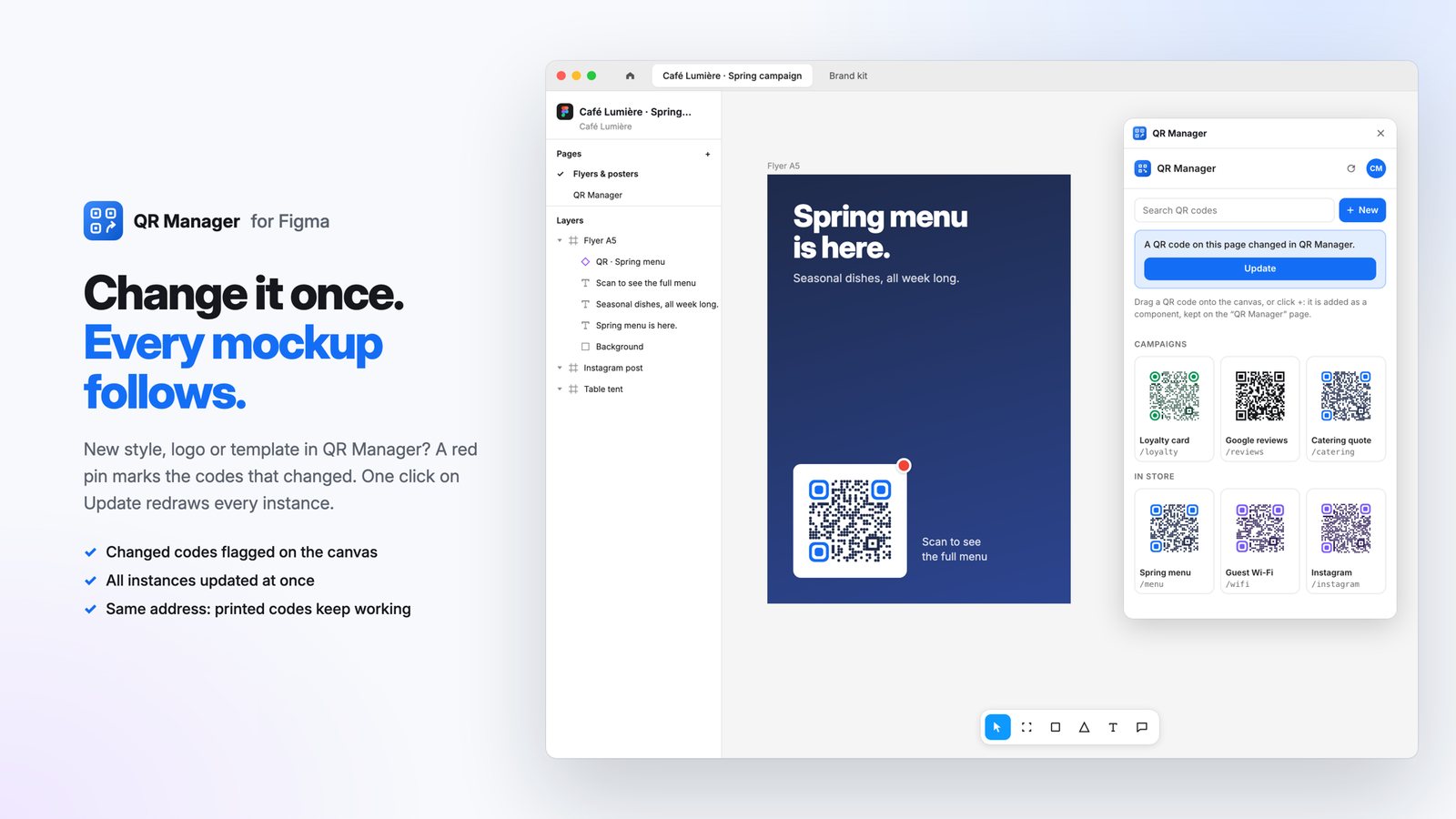
When a code’s image changes in QR Manager (new style, template, logo or domain) or it is renamed, the plugin notices it when it opens, or after Refresh:
- a small red pin appears on the component, so on all its instances;
- a banner offers Update: the component is redrawn and every instance follows.
With QR codes selected, the properties panel also offers Update from QR Manager.
Settings
The avatar opens the settings: account and plan, the space (QR code domain, scan counting), team templates, default UTM tracking, language, help and sign out.
Frequently asked questions
Are QR codes inserted in Figma images or components?
Components. Each QR code becomes a vector main component on a "QR Manager" page of your file, and what you drop on the canvas is an instance of it.
Does the Figma plugin update QR codes automatically?
When you open the plugin (or click Refresh), it checks your codes. Changed ones get a red pin on the canvas, and one click on Update redraws them; every instance follows.